Gateways
Monitor and maintain Linux enforcement points.
A gateway is the Linux host that terminates agent tunnels next to your applications and enforces policy. Network → Gateways lists every registered gateway, shows its health and version, and is where you enroll new ones, declare LAN networks and revoke old ones. Gateways are separate from Orbit public egress.
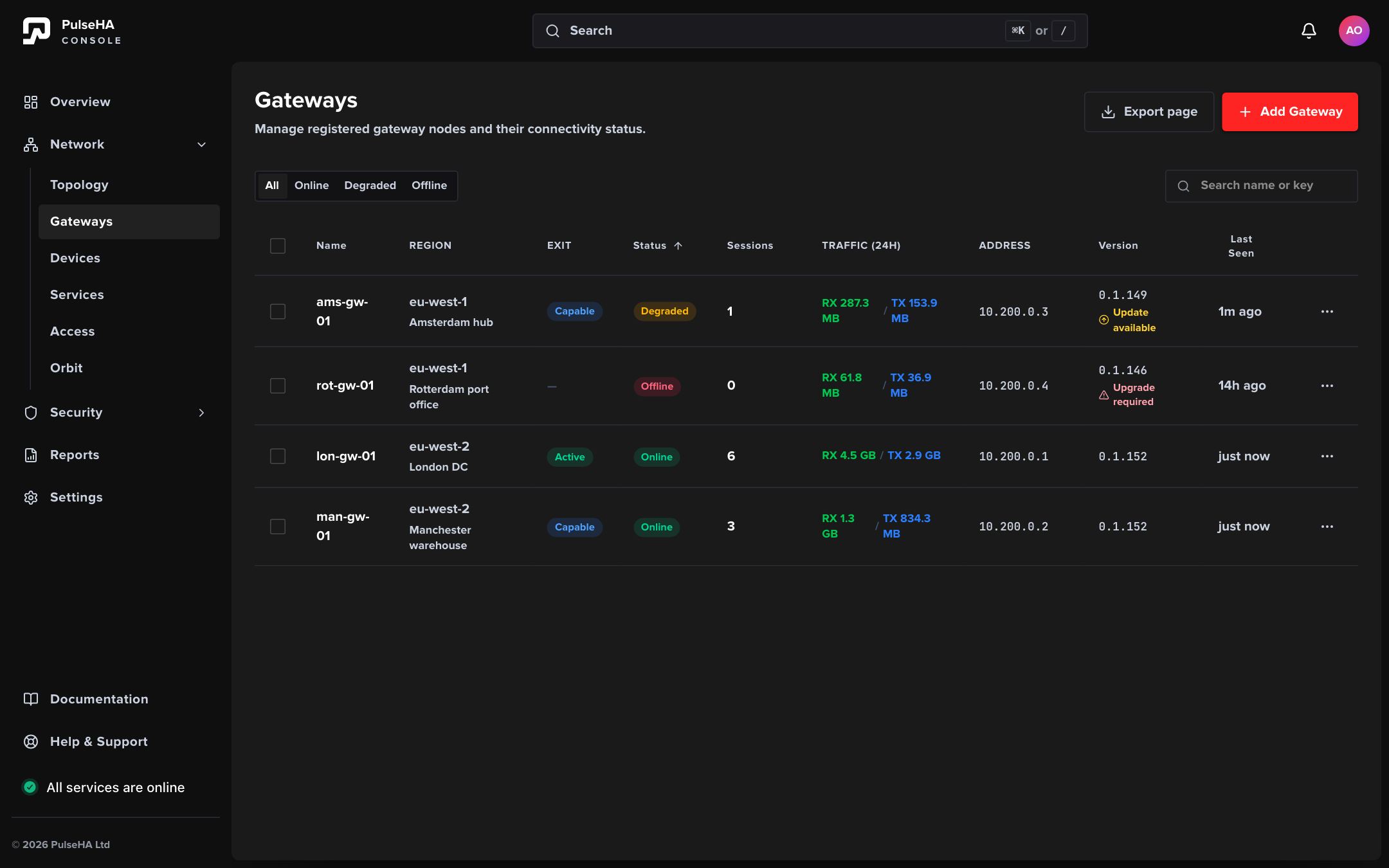
The list leads with status: two online gateways, one degraded and one offline, with version advice under each version number.
Before you start#
gateways:viewlets you read the list and open a gateway. Add Gateway needsgateways:create; Edit gateway and LAN network changes needgateways:update; Remove gateway needsgateways:delete. Owners and admins hold these by default.- Gateway enrollment is Linux only. The host needs
sudoand outbound access to the control plane. - A gateway below the minimum supported version is rejected at registration and on every heartbeat with HTTP 426 and the message Gateway version is below the minimum required. Please upgrade.
Enroll a gateway#
- Open Network → Gateways and click Add Gateway.
- Wait for the Install command panel. The console mints a single-use enroll code that expires after 24 hours and shows the one-liner
curl -fsSL https://get.pulseha.com/install-gateway.sh | sudo bash -s -- -y --code <code>. - Click Copy and run the command on the Linux host. The script installs the package and enrolls the gateway automatically.
- Leave the page open. The Connect section shows Waiting for your gateway to check in…, then Gateway registered while the service starts, then Gateway connected with View gateway and Publish a service links.
- Use Replace code to mint a fresh code or Revoke code to cancel the current one. Leaving the page keeps the code valid until it is used or expires.
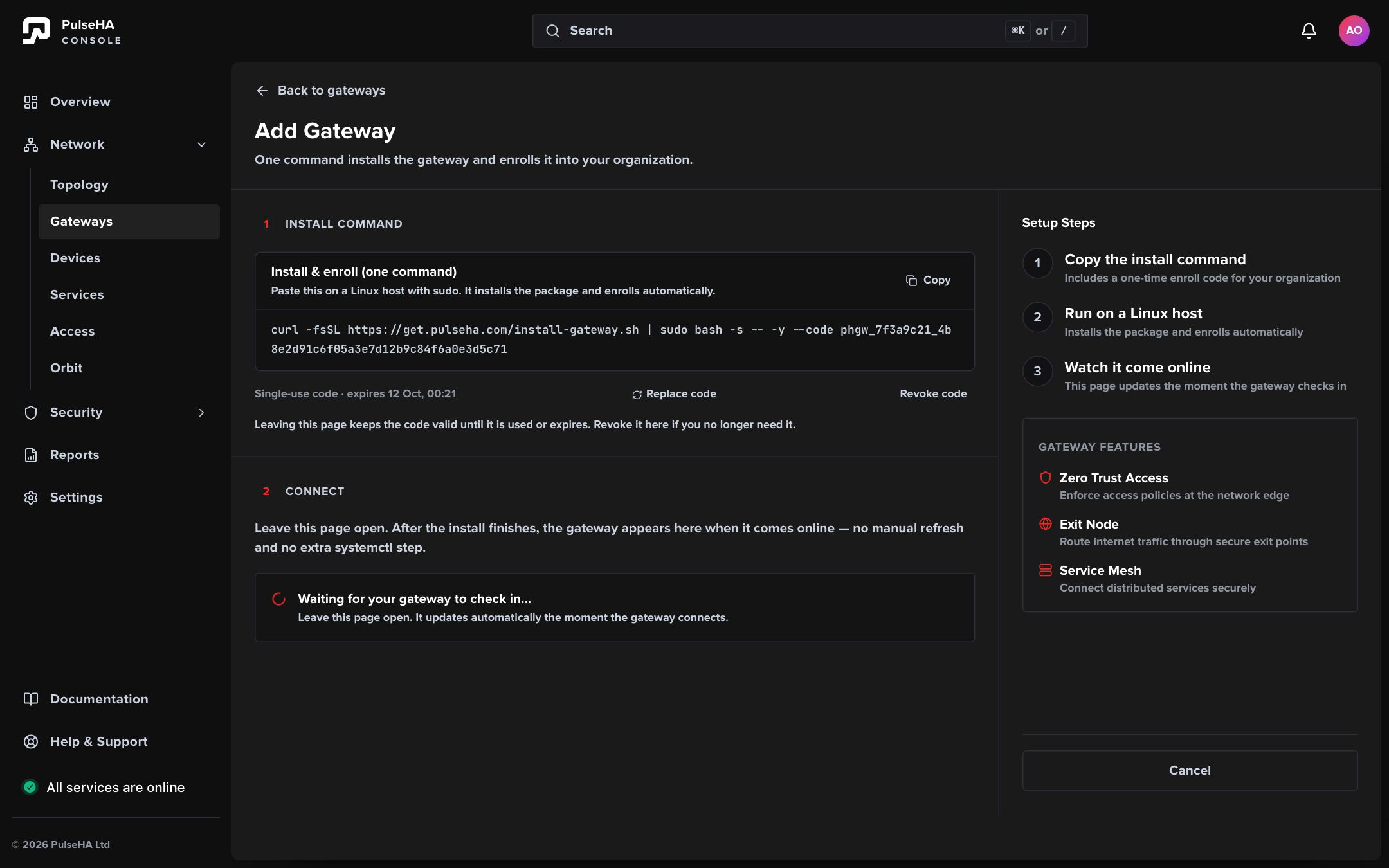
The install command embeds a single-use enroll code; the Connect section below it waits for the new gateway to check in.
Read the list#
Filter with All, Online, Degraded or Offline, search by name or public key, and click Export page to download the current page as CSV. The list shows 25 rows per page and updates live, with a poll every 10 seconds as a fallback.
| Column | Meaning |
|---|---|
| Name | Click to open the detail drawer |
| Region | Detected from the gateway’s public IP. The site appears underneath when set |
| Exit | Active when exit is enabled, Capable when it could be, blank otherwise |
| Status | Online, Degraded, Offline or Unknown |
| Sessions | Active tunnels |
| Traffic (24h) | RX and TX observed in the last 24 hours, or Unavailable |
| Address | Tunnel IP, with a copy button |
| Version | Running version plus Upgrade required or Update available when relevant |
| Last Seen | Relative time, or Never connected |
The control plane computes Status: a heartbeat within the last 90 seconds is Online, anything older is Offline. A fresh gateway that reports a problem is Degraded. A revoked gateway shows Revoked in the drawer.
The row menu offers View activity, Copy public key, Edit gateway and Remove gateway.
Inspect a gateway#
Click a name to open the drawer (the URL gains ?gateway=<id>). It refreshes every 10 seconds while open.
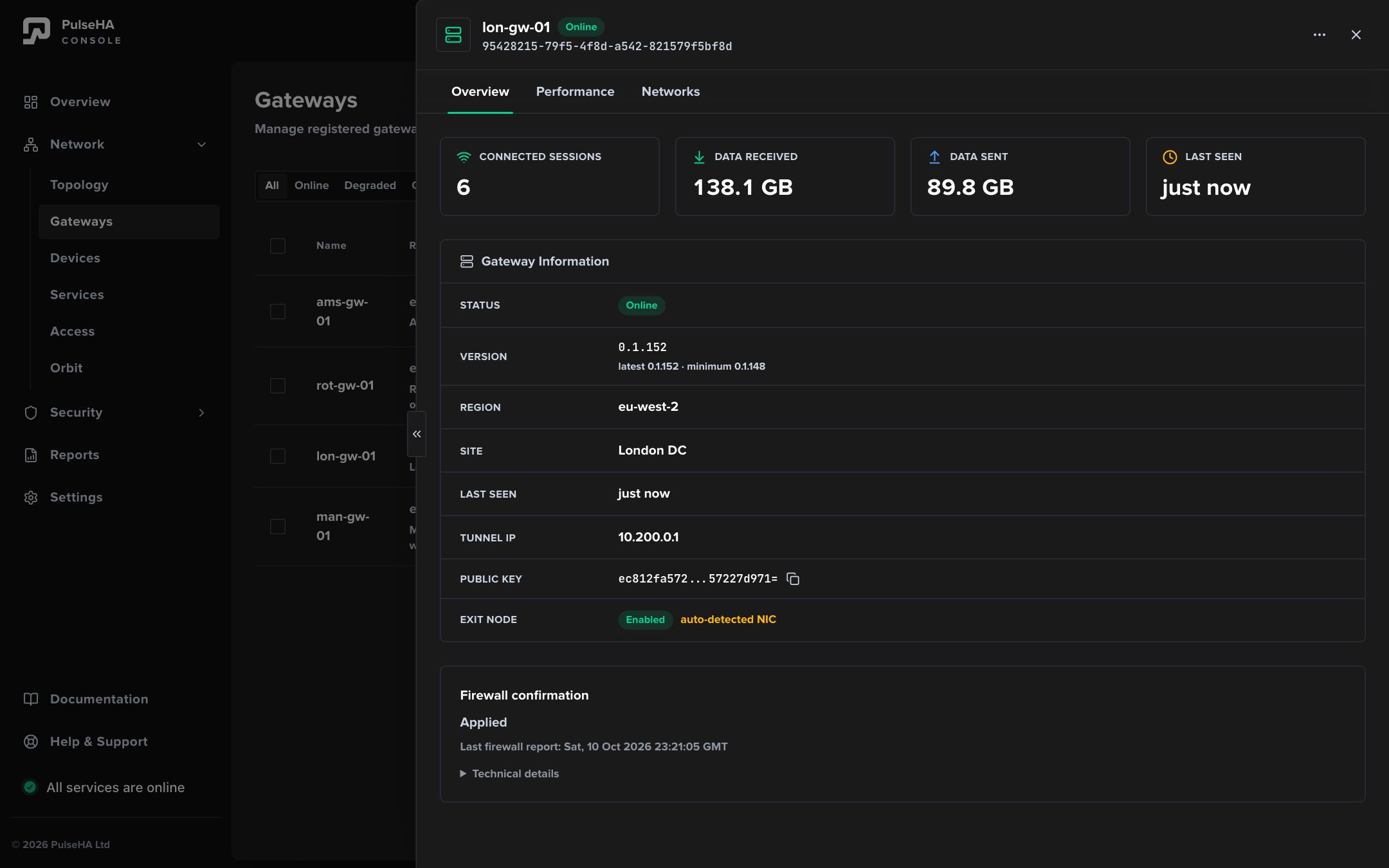
The Overview tab opens with session and traffic tiles, then the Gateway Information rows including version, region, tunnel IP and exit state.
- Overview: tiles for sessions and traffic, then Gateway Information rows including Version (with the latest and minimum versions spelled out), Region, Site, Tunnel IP, Public Key and Exit Node (Not capable, Enabled or Disabled). An Egress broken chip means the host is missing its masquerade interfaces and exit traffic through it is dropped. Firewall confirmation reports whether the latest firewall revision was applied; it needs gateway 2.6.3 or later.
- Performance: CPU, memory, sessions and throughput for the last 24 hours.
- Networks: the LAN networks behind this gateway (see below).
Edit a gateway#
- Choose Edit gateway from the row or drawer menu.
- Change Gateway Name (required; saving an empty name shows Name is required).
- Region and Tunnel Address are read only. Region is detected from the public IP and refreshed on each heartbeat; the tunnel address is allocated from the gateway address pool.
- Turn on Exit Node when this gateway should carry internet egress for devices. See Exit nodes.
- Click Save Changes.
Declare LAN networks#
Open the Networks tab and click Add Network. Enter Name, CIDR (IPv4, for example 10.1.0.0/24), an optional Description, and choose Masquerade (SNAT remote traffic to gateway LAN IP) and Enabled. Invalid input shows Invalid CIDR format (e.g. 10.1.0.0/24), Invalid IP octets or Prefix length must be 0-32. Only enabled networks can be selected in a site-to-site policy. Deleting a network warns Traffic to this subnet will no longer route through the gateway.
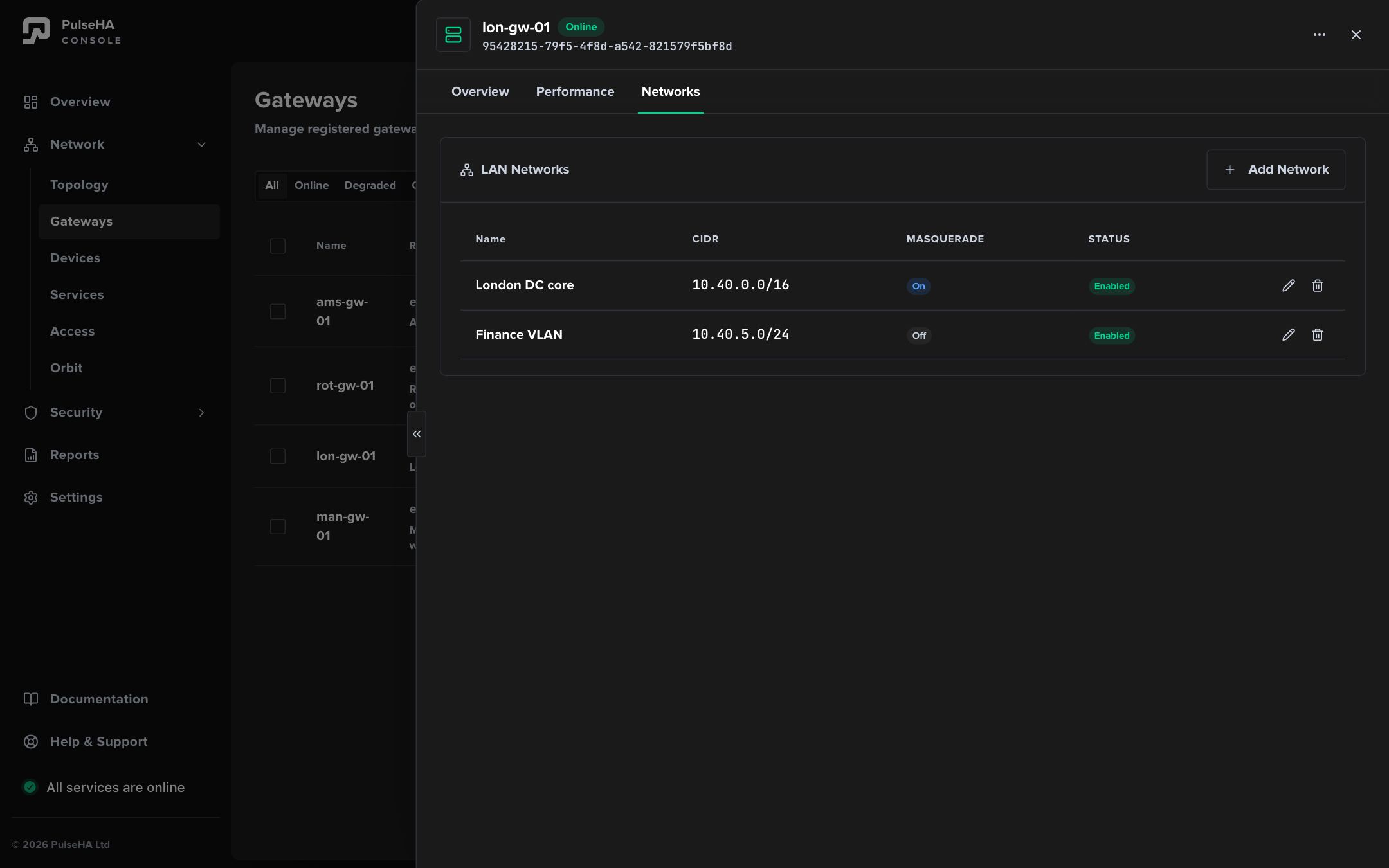
Each declared network shows its CIDR, masquerade flag and enabled state; site-to-site policies pick from this list.
Remove a gateway#
Choose Remove gateway and confirm Remove Gateway. The dialog explains that access is revoked and that the gateway receives the shutdown instruction when it next contacts the control plane, so an offline host may not receive it immediately. Removal records the revocation; it does not uninstall the host package. Uninstall the gateway service on the host yourself.
Revoked gateways are not removed from services or access policies. The Services and Access pages flag such rows with a warning (This service references revoked gateways. Edit to update.). Open each one, remove the gateway and save.
Troubleshooting#
- A new gateway stays on “Waiting for your gateway to check in…”. Confirm the install command finished without error, the host can reach the control plane, and the code was not already used or expired. Click Replace code and rerun.
- “Gateway registered” never becomes “Gateway connected”. The gateway authenticated but has not reported online. On the host, run
sudo systemctl status pulseha-gatewayandsudo journalctl -u pulseha-gateway -n 50. - “Upgrade required” under the version. The gateway is below the tenant’s minimum supported version and its heartbeats are rejected until you upgrade the host package. Update available is advisory only.
- “Egress broken” on an exit gateway. Set
nat.interfaces(orGATEWAY_NAT_INTERFACES) on the host so masquerading uses the right interface. - “Failed to remove gateway: Conflict”. The gateway is shared or already revoked and cannot be modified in its current state.
- “You don’t have permission to view gateways.” Ask an owner or admin for
gateways:view.